Detailed Page Usage Guides
The purpose of the registration Payment Processing page is to complete payment for your selected items. If online credit card processing is not allowed by the event management, your event tickets, contest entries, and product purchases will be treated as unpaid until sign-in at the event.
Screenshot:
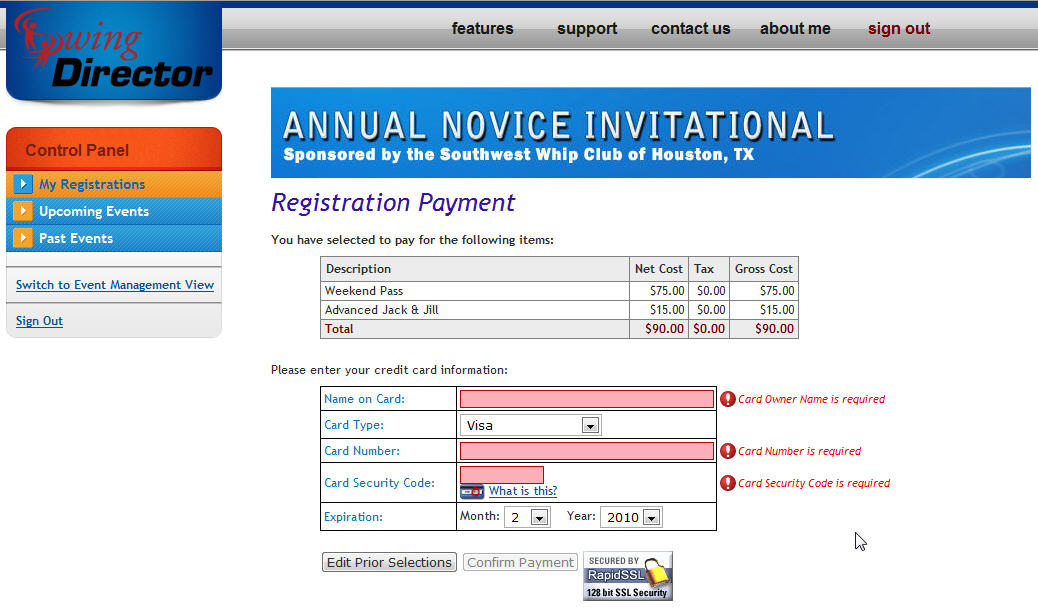
The top of the Payment Processing screen will display a list of event admissions, contest entries, and event products you have selected to purchase. If the event management has set some items as allowing deferral of payment until event check-in, then this list will only display items for which you have selected the "Pay Now" option.
Field Entry Details:
If your event utilizes PayPal as their credit card merchant provider, then you will be redirected to the PayPal site to complete payment upon clicking the Complete Payment button. If not, then you will be prompted to enter your credit card information, to be processed by the event's selected credit card merchant. Enter your credit card information as indicated below:
| Name on Card: |
required |
Exact name of the credit card holder, as displayed on the card |
| Card Type: |
required |
Type of credit card to be used for the purchase |
| Card Number: |
required |
The credit card number to use in processing payment |
| Card Security Code: |
required |
The security validation code for your credit card. For more information on how to identify this number for your specific card type, please click the "What's This" link on the Payment Processing page. |
| Expiration: |
required |
Expiration month and year for your credit card |
Common Usage:
- If you need to make any changes to your selections prior to completing payment, click on the Edit Prior Selections button.
- Upon completion of the successful payment, you will be presented with a confirmation screen, containing your confirmation number and a link to the credit card merchant. Also, an email will be sent to you containing a summary of your purchase and the same purchase confirmation information.
- Use the button(s) along the bottom of the page to move forward or backward in the event registration process.